HOW TO SAVE A FILES IN MICROSOFT WORD?
HOW TO SAVE A FILES IN MICROSOFT WORD?
You can save a file to a folder on your hard disk drive, a network location, the cloud, a DVD, the desktop, flash drive, or save as another file format such as RTF, CSV or PDF. While you must identify the target location, if it is different than the default folder, the saving process is the same regardless of what location you choose.
By default Office programs save files in the default working folder. To save the copy in a different location, click a different folder in the folder list.
Important: Even if you have AutoRecover enabled, you should save the file frequently while you are working on it to avoid losing data because of an unexpected power failure or other problem.
Save a file
- Press CTRL+S or click the File tab, and then click Save.Tip: You can also click the Save icon
![[Untitled]](https://support.content.office.net/en-us/media/1363421b-2ff2-4e61-b16d-5c8c48ff4bf6.jpg "[Untitled]") on the Quick Access Toolbar.
on the Quick Access Toolbar. - You must enter a name for the file if you are saving it for the first time.
You can save a copy as a new file, or in a different format, or to a different location in Office 2016.
Save a copy as a new file (Save As)
Tip: If you're going to create a new file, based on an existing file, but only want your changes saved in the new file it's a good idea to do the Save a Copy process first thing; before you've made any changes. That way your original file will remain unchanged and all your edits will be in the new copy.
- Press F12 or click File > Save a Copy
- By default Office will save the copy in the same location as the original. If you want to save the new copy in a different location choose it at this point. If you're happy with the existing location go on to step 3.
- Give your new copy a name and click Save.
Your original file will be closed and you'll now be working in the new copy you just created.
Tip: If you find yourself creating new files based on existing files often, you may want to use templates to make the process easier and safer. See Create a template for more information.
Choose a different location to save your file
During the Save, or Save a Copy, process described above you can choose a different location to save your file.
- Select the cloud, web site, or device location where you want to save the file.LocationDescriptionSites – [Your Company Name]SharePoint or Office 365 Groups document librariesOneDrive – [Your Company Name]OneDrive for BusinessOneDrive – PersonalOneDrive for consumers via your Microsoft accountThis PCYour local device, including any connected hard drives or flash drivesBrowseOpens the File Explorer so you can navigate to any location on your computer.
- Select a folder from the Recent Folders list, or click Browse if you don't see the location you want listed there.
- Confirm the filename you want to use and click Save.
Save as a different, or older, format
You might want to save your file in another format so that you, or somebody else, can open the file in a different program or older version. For example, you might want to save your Word 2016 document as a Rich Text File (RTF) or your Excel workbook as a Comma-Separated Values (CSV) file.
- Click the File tab.
- Click Save As.
- Choose a file location, such as OneDrive or This PC to store your file.
- In the File name box, enter a new name for the file.
- In the Save as type list, click the file format that you want to save the file in. For example, click Rich Text Format (.rtf), Word 97-2003 (.doc), Web Page (.htm or .html), or Comma Delimited (.csv).
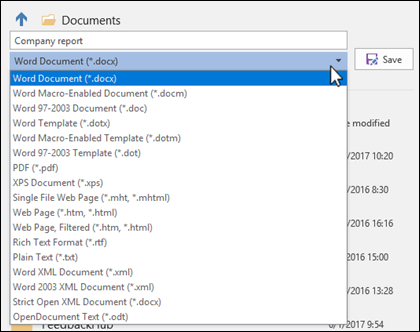 Note: For more information about how to save files in PDF (.pdf) or XPS (.xps) formats, see Save as PDF or Save as XPS.
 - Click Save.
THAT'S ALL. THANK YOU !


Thank you for this info it was helpful where did you to learn that?
TumugonBurahinI learn that when I'm in grade 10. My teacher teach us how to save files in microsoft word.
BurahinWhat if my docx is corrupted? How can I deal with that problem?
TumugonBurahinit's easy to learn to save a file in microsoft word?
TumugonBurahinYes,,.. Just follow the tutorial . That's it.
Burahinwhere did i use microsoft word?
TumugonBurahinIt is easy to use and allows you to create all different types of documents.
BurahinThank you for this information! What is the importance of saving your files from Microsoft Word?
TumugonBurahinIt’s very important to save your work and back up regularly (every 10 minutes).
BurahinThis is because data can become corrupted, hardware can suddenly cease to function and it is very easy to accidentally overwrite or delete an important file.
that is good idea nice i think it will help me !! me a lot
TumugonBurahinThank you for this info. what is the advantage of the microsoft 2016?
TumugonBurahinIt help you to create all different types of documents.
BurahinAs a member of the Comment Reading Association of Philippines (CRAP) , I'm only here to read comments. Please keep the comments short and simple. We do appreciate your typing efforts. Also please watch your spelling. Thank you
TumugonBurahinWHAT IF THERE IS AN ERROR IN YOUR MICROSOFT THAT IT CANNOT SAVE YOUR FILE?
TumugonBurahinYou must need to learn more about saving files in microsoft word. You need to save your files every 10 minutes.
TumugonBurahinThank you for the info . Is it the only way to save files in microsoft word ?
TumugonBurahinThank you for this info. What if i accidentally close the microsoft word what will happen to my document?
TumugonBurahinit will erase . But sometimes There's a bar popup to the screen of your gadget.
BurahinHow can I make sure that my files will be saved?
TumugonBurahinJust follow the tutorial .. And search it to the start logo
BurahinHow can I make sure that my files will be saved?
TumugonBurahinWhat is the advantages of saving your documents?
TumugonBurahinYou can edit the documents again .
Burahin